Cell Annotation
On this page, you will find information about how to annotate cells in iSCanGuide.
In iSCanGuide, metadata, which is imported along with samples, is immutable and cannot be edited. We refer to Annotation as the process of adding new metadata to cells in the samples, or the metadata that is created by iSCanGuide. These annotations can be used as regular metadata and can be freely modified.
Navigation
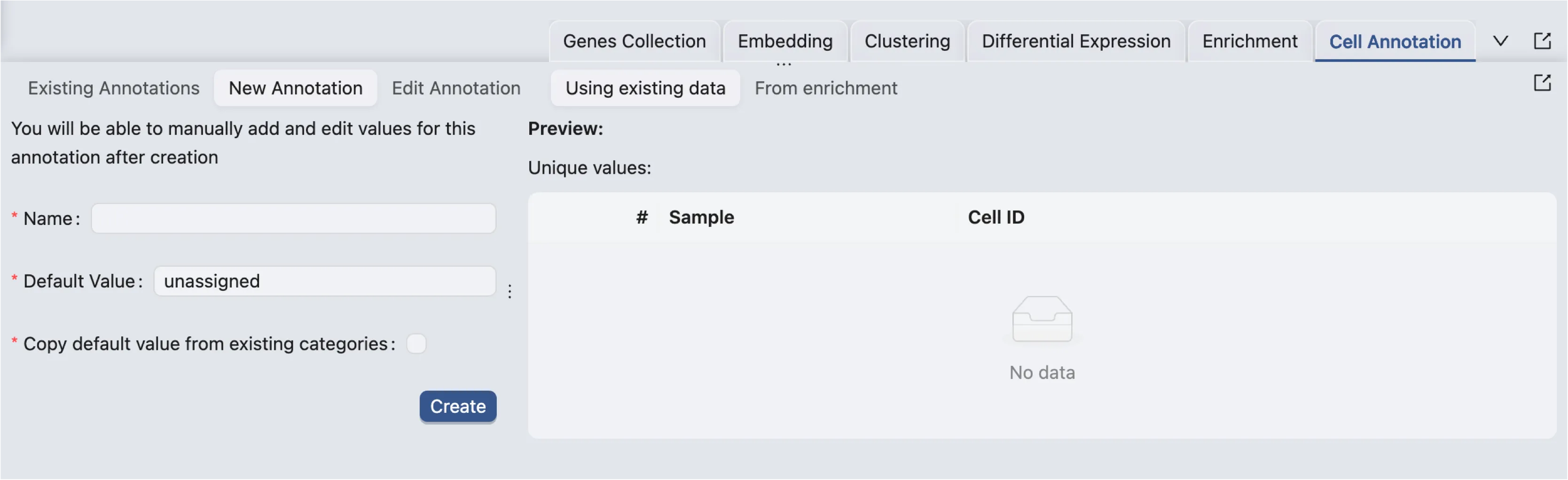
To access the Cell Annotation panel, click on the Cell Annotation tab on the Data and Analysis Panel.
Workflow
New Annotation
To create a new annotation, click on the New Annotation button. iSCanGuide supports multiple ways to create a new annotation:
From existing data: Create a new annotation from existing metadata, clusters, or annotations.
From enrichment analysis: Create a new annotation from enrichment analysis results.
Using cell type prediction: Create a new annotation using cell type prediction.
From Existing Data
To create a new annotation from existing data, click on Use Existing Data.
New Annotation Form
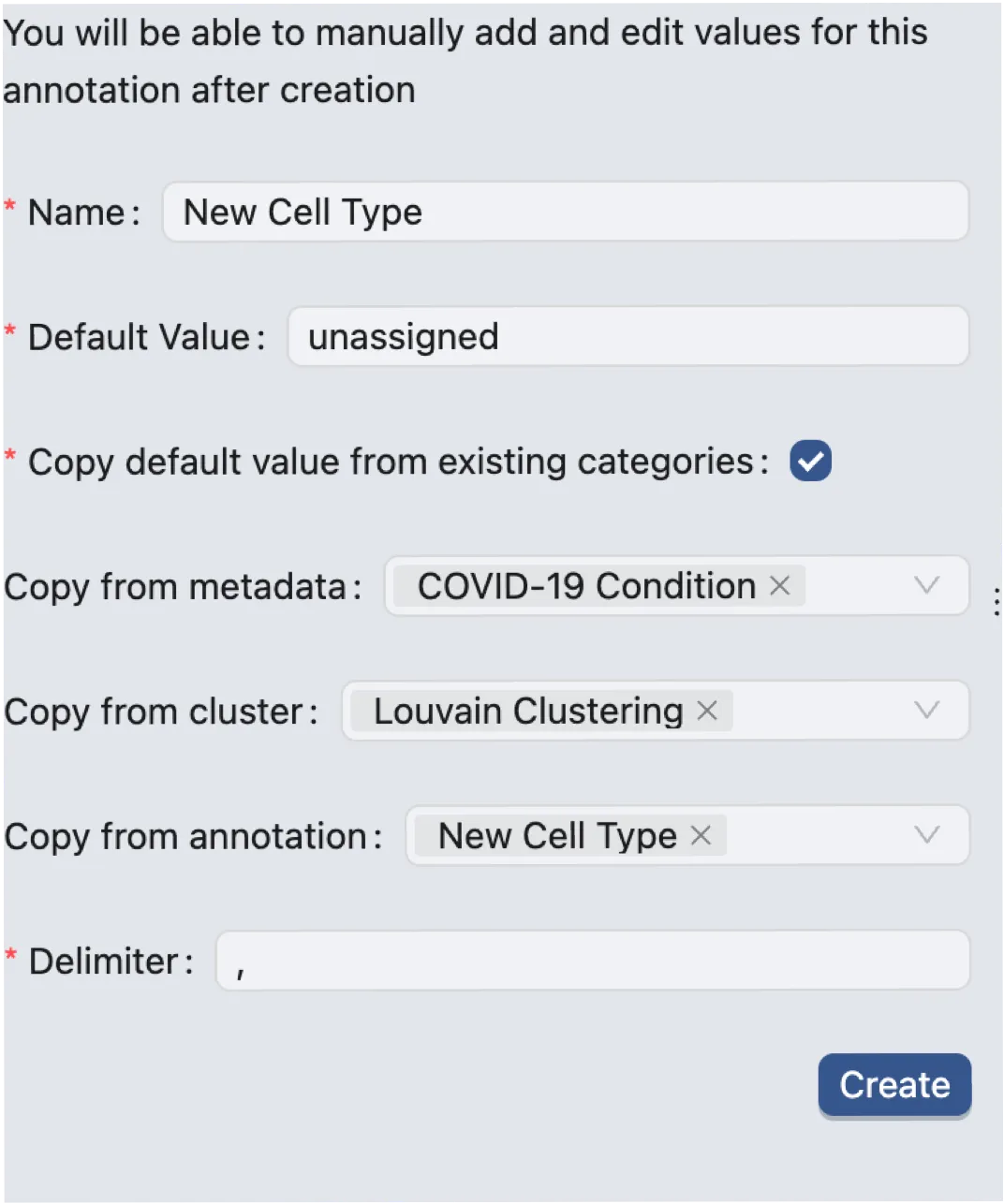
The annotation form allows you to create a new annotation by copying the default value from existing metadata, clusters, or annotations. This is useful when you want to create a new annotation based on existing data or want to combine multiple annotations into a single annotation.
The new annotation form consists of the following fields:
Name: Enter a name for the new annotation.
Default Value: Enter a default value for the new annotation. This value will be assigned to all cells by default or when there is missing data.
Copy Default Value From Existing Categories: Select this box if you want to copy the default value from other metadata, clusters, or annotations.
Copy From Metadata: Select one or more metadata fields from which you want to copy.
Copy From Cluster: Select one or more clusters from which you want to copy.
Copy From Annotation: Select one or more annotations from which you want to copy.
Delimiter: Use this field to specify the delimiter for the copied values if you are copying from multiple fields.
Preview
A preview of the new annotation is displayed beside the form and is updated in real-time as you modify the form.
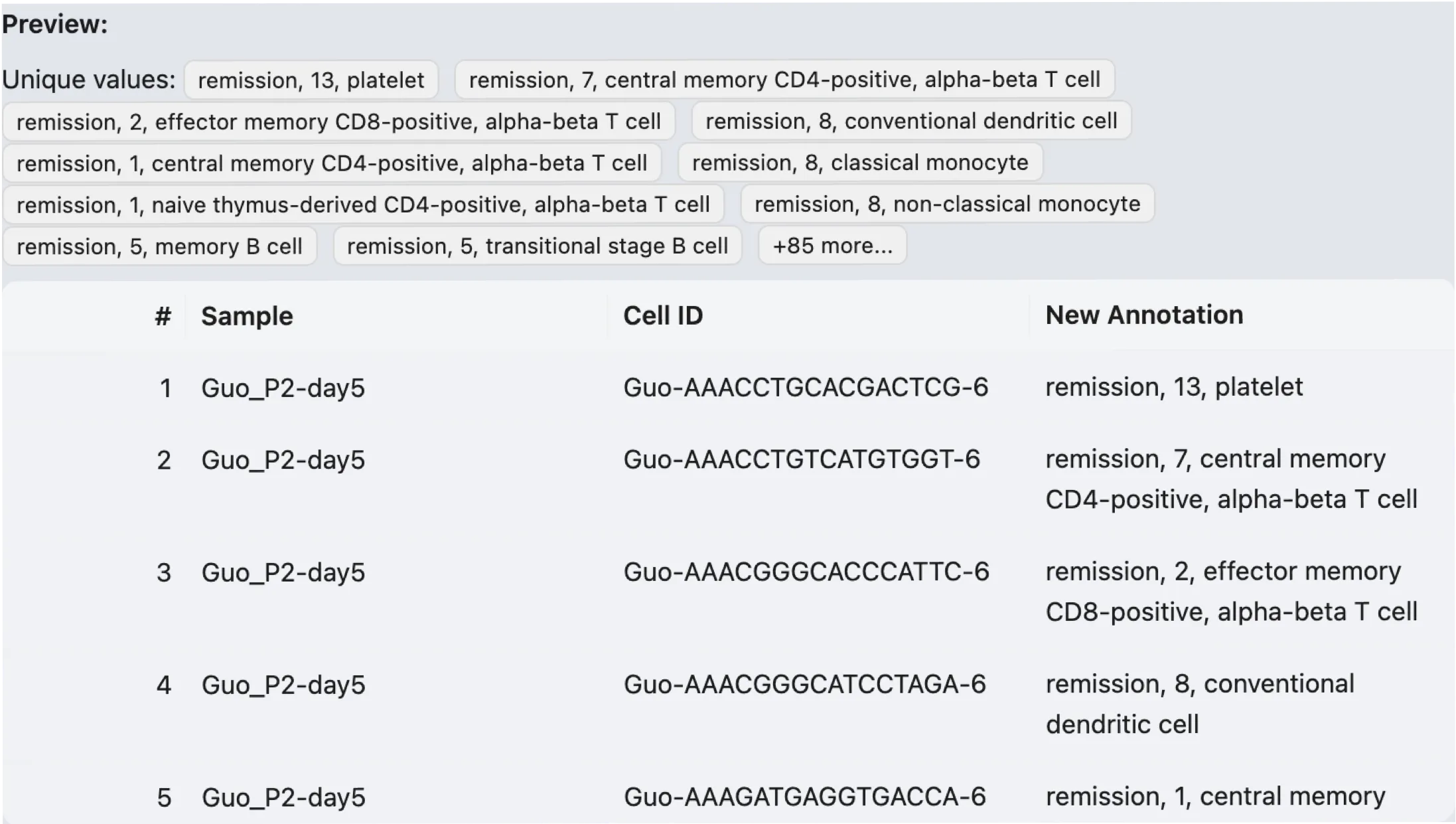
The preview table consists of the following columns:
#: The index of the cell.
Sample: The sample that the cell belongs to.
Cell ID: The unique identifier of the cell within the sample.
Annotation: The value of the new annotation for the cell. The title of this column is the name of the new annotation.
Click on the Create button to create the new annotation. You can view the new annotation in the Existing Annotations section or edit the annotation by going to the Edit Annotation section.
From Enrichment Analysis
You must have performed enrichment analysis to create a new annotation from enrichment analysis results. To see how to perform enrichment analysis, see Enrichment Analysis.
To create a new annotation from enrichment analysis results, click on From Enrichment. The interface of creating a new annotation from enrichment analysis results is as follows:
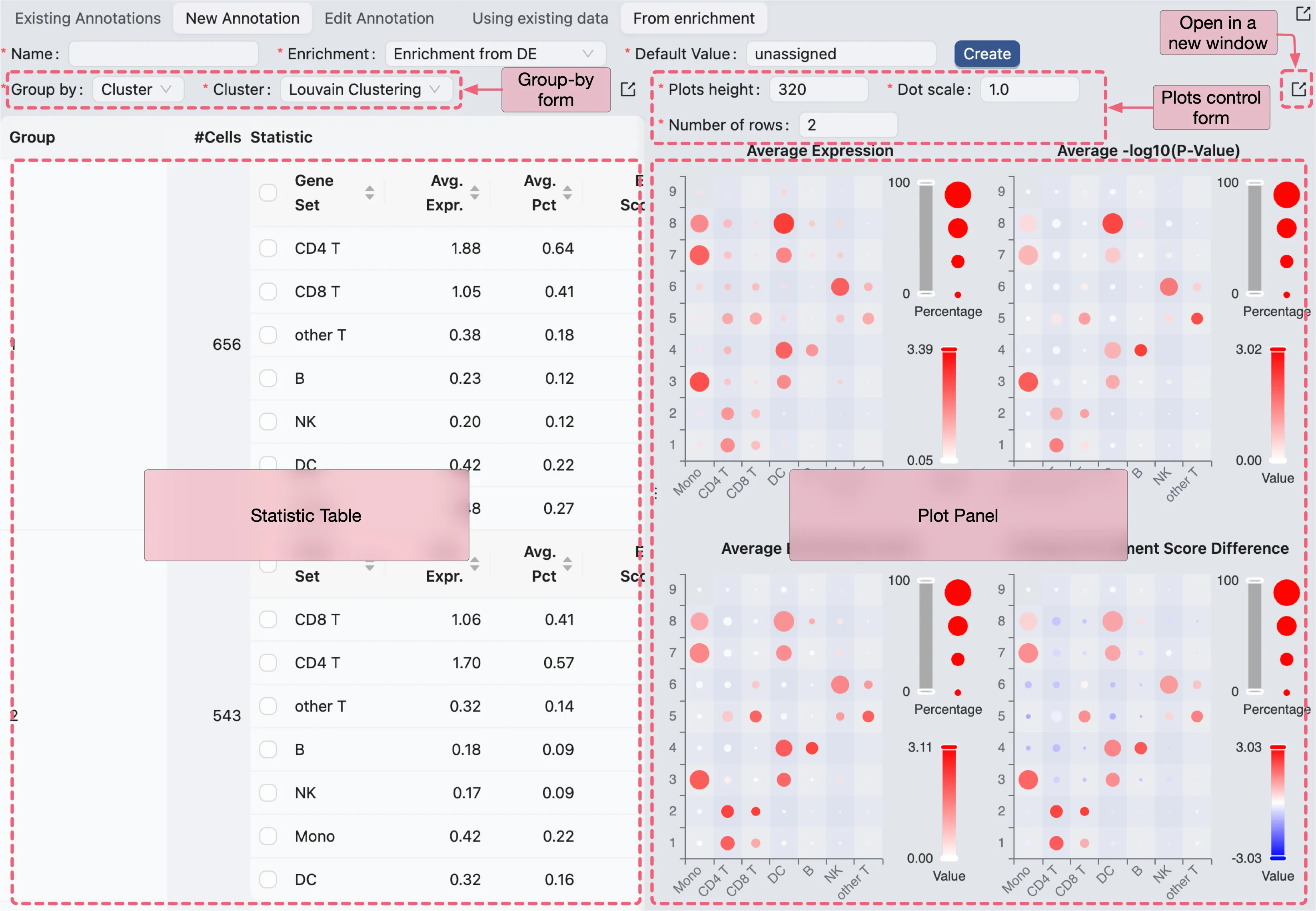
There are two main sections in the interface:
Statistics: This section displays the statistics of the enrichment analysis results.
Plots: This section displays the plots of the enrichment analysis results.
Each of the sections can be opened separately in a new window by clicking on the  icon.
icon.
Statistics
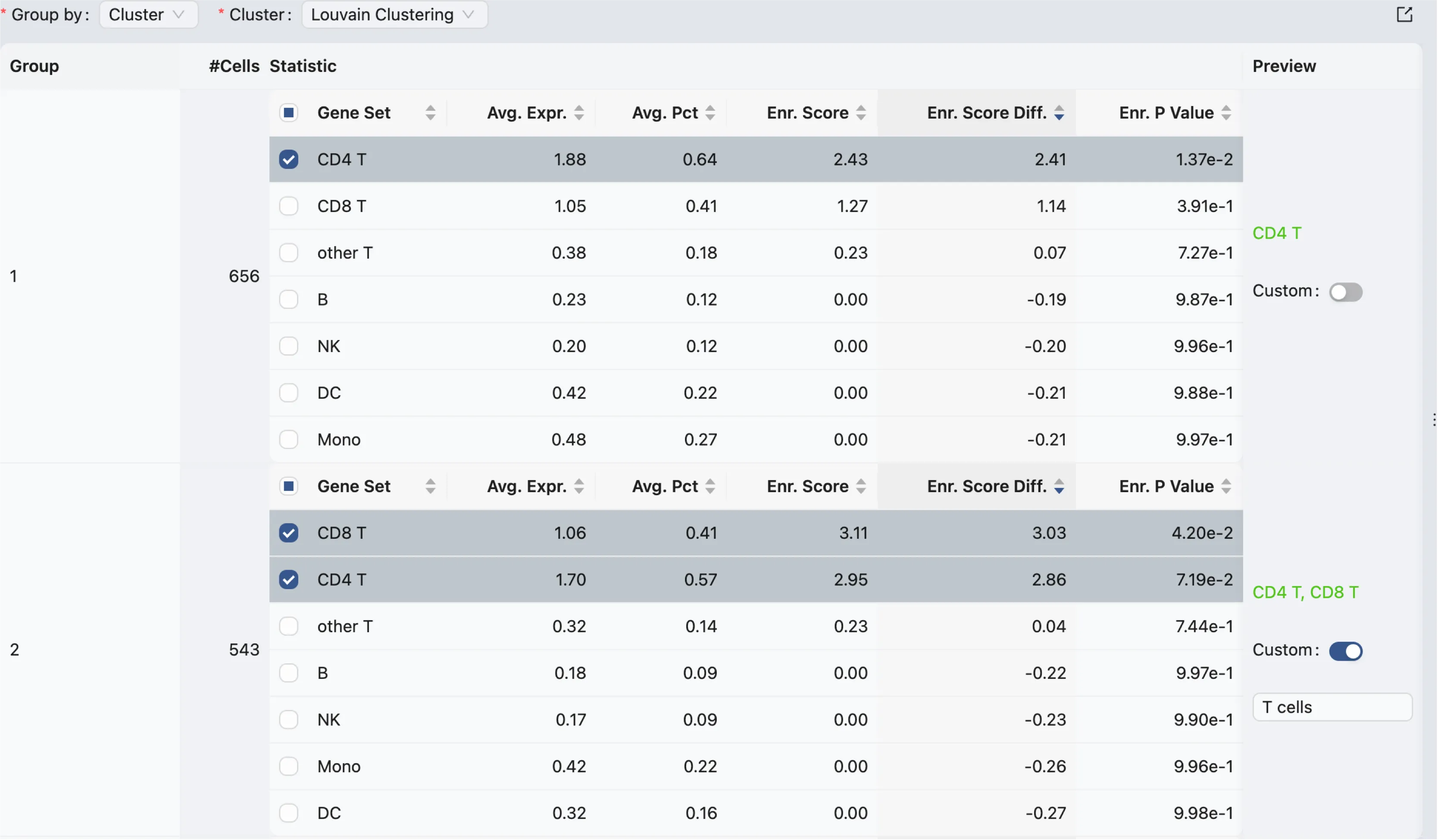
The statistics section allows you to group cells based on existing clusters, metadata, or annotations. It then calculates the enrichment of gene sets in each group of cells and displays the results in a table.
The table consists of the following columns:
Group: The name of the group.
# Cells: The number of cells in the group.
Genes Set: The name of the gene set.
Average Expression: The average expression of genes in the gene set.
Average Percentage: The average percentage of cells in the group that express the genes in the gene set.
Enrichment Score: The enrichment score of the gene set in the group.
Enrichment Score Difference: The difference in enrichment score between the group and the rest of the cells.
Enrichment P-Value: The p-value of the enrichment score.
Preview: A preview of the new label that will be assigned to the group when the annotation is created.
There are two ways to assign a new label to the group:
Using Checkbox: Select the checkbox next to the gene set names to indicate that you want to use the gene set name as the new label.
You can select multiple gene sets to combine them into a single label.
Using Custom Label:
Enable custom label by clicking on the
Customswitch in the preview column.Enter a custom label in the text field that appears.
Plots
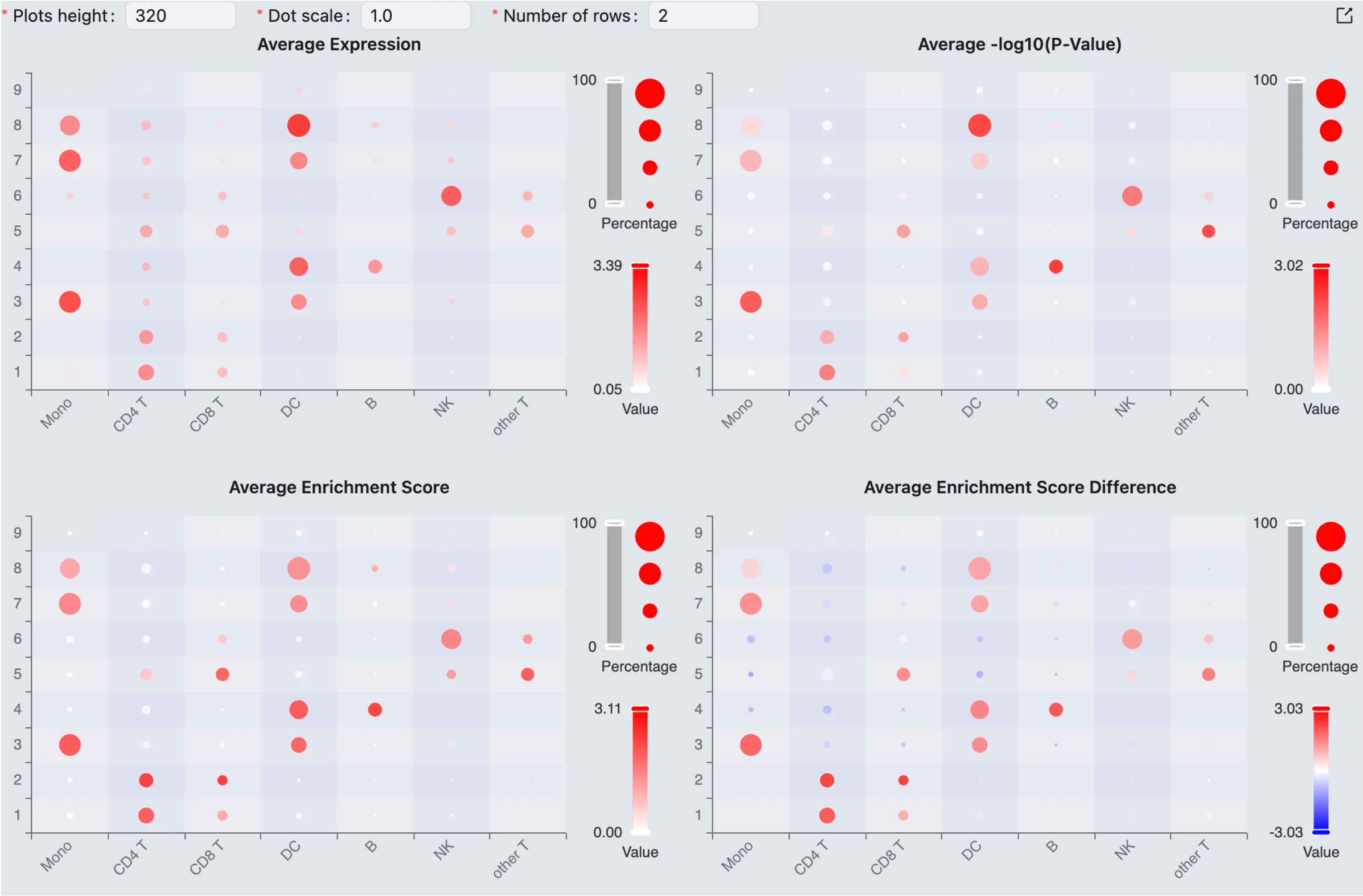
The plots section displays four dot plots for:
Average Expression: The average expression of genes in the gene set.
Average -log10(P-Value): The average -log10(p-value) of the gene set.
Average Enrichment Score: The average enrichment score of the gene set.
Average Enrichment Score Difference: The average difference in enrichment score between the group and the rest of the cells.
In each plot:
x-axis: The gene sets.
y-axis: The groups of cells.
The size of the dots represents the percentage of cells expressing the gene set in the group.
The color of the dots represents the value of the selected metric.
Using Cell Type Prediction
iSCanGuide can automatically assign cell type labels to your cells using the SingleR algorithm. It scores each cell against a labelled reference dataset and assigns the best-matching label. Low-confidence cells are flagged as Unassigned using a port of the pruneScores function from the original R package.
Use cell type prediction when you have a sample with no existing annotation and want an automated starting point, or when you want to cross-check a manual annotation against a published reference. After the prediction runs, the result is saved as a regular annotation that you can review and edit using the tools on this page.
Workflow
To open the form, click the New Annotation button and select Using cell type prediction.
Form fields
Name: The annotation name. Supports placeholders that expand at submit time:
{method}→singler,{reference}→ the selected reference id,{granularity}→mainorfine. The default template{method}_{reference}_{granularity}produces names likesingler_blueprint_encode_main. Edit or remove the placeholders to use a custom name.Samples: One or more samples to annotate. All selected samples are annotated in a single job.
Reference: The labelled reference dataset to score against. Available built-in references:
Reference | Organism | Notes |
|---|---|---|
BlueprintEncode | Human | Blueprint Epigenomics + ENCODE bulk RNA-seq |
Human Primary Cell Atlas | Human | Microarray-based broad survey |
Monaco Immune | Human | High-resolution immune cell bulk RNA-seq |
ImmGen | Mouse | Microarray-based immune cell atlas |
Mouse RNA-seq | Mouse | Bulk RNA-seq |
Administrators can also register custom reference datasets on the shared volume; these appear in the same picker.
Label granularity: Controls how fine-grained the assigned labels are.
Main (coarse)— broad categories (e.g., T cells, B cells, monocytes).Fine (detailed)— subtypes within those categories (e.g., CD4+ T cells, naive B cells). Available only if the selected reference provides fine-grained labels.
Annotate by cluster: When enabled, iSCanGuide aggregates expression across all cells in each cluster (or metadata group) and annotates the resulting pseudo-bulk profiles instead of individual cells. Every cell in a cluster receives the same label.
This is much faster on large datasets (seconds vs. minutes per sample).
Use it when your clusters are already biologically meaningful and you want a quick per-cluster label.
Cluster source type: Shown when
Annotate by clusteris enabled. ChooseClustering analysesto use a saved clustering result, orMetadata columnsto use a categorical metadata column.Clustering / Metadata column: The specific clustering result or column to group cells by.
Advanced
Click Advanced to expand the fine-tuning options. Most users can leave these at their defaults.
Fine-tune (default: enabled): Runs a second scoring pass restricted to close-competitor labels using finer-grained marker genes. Improves accuracy between similar cell types (e.g. T cell subsets) at a small cost in run time.
Fine-tune threshold (default
0.05, range 0–0.1): Maximum score gap from the top label for a label to participate in fine-tuning. Higher = more labels refined per cell (slower, more thorough). Visible only when Fine-tune is enabled.Outlier cutoff (MADs) (default
3, range 2–5): Controls how many cells are markedUnassignedas low-confidence outliers. Uses thepruneScoreslogic from the R SingleR package: within each label, cells whose confidence score falls more than this many median absolute deviations below the per-label median are pruned. Lower = stricter (more cells become Unassigned); higher = more permissive (fewer Unassigned). Set to a very high value (e.g.100) to effectively disable pruning.
After submission
Click Submit to queue the job. Track progress in Study Logs.
When the job completes, the new annotation appears in the Existing Annotations list with the resolved name (e.g. singler_blueprint_encode_main). A small number of cells may be labelled Unassigned — these are cells the algorithm could not assign with sufficient confidence given the outlier cutoff setting.
Existing Annotations
The existing annotations table displays all the annotations that have been created in iSCanGuide.

Here you can change the name of the annotation by expanding the annotation row and editing the name field.
Edit Annotation
To edit existing annotations, click on the Edit Annotation button to open the edit interface.
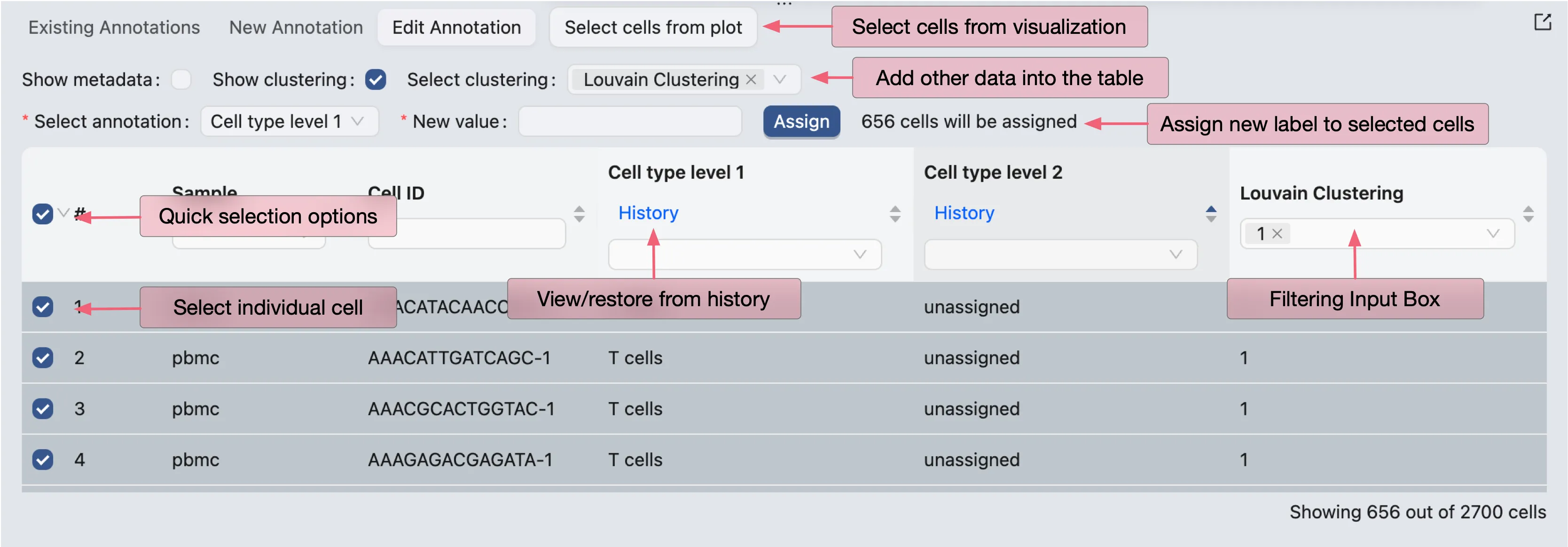
Annotation Table
The main component of the edit interface is the annotation table, it displays the following columns:
#: The index of the cell.
Sample: The sample that the cell belongs to.
Cell ID: The unique identifier of the cell within the sample.
Annotation 1: The value for Annotation 1. Here Annotation 1 is the name of the annotation.
Annotation 2: The value for Annotation 2. Here Annotation 2 is the name of the annotation.
...: The value for other annotations.
You can add other data, including metadata, and clusters to the table by selecting Show Metadata and Show Clusters respectively, then selecting the metadata fields and clusters you want to display.
Assign New Value
To assign a new value to a cell or a group of cells, check the checkboxes in the first column of the cell rows. A new form will appear at the top of the table where you can select the annotation you want to edit and assign a new value to it.
Filter Cells
You can filter cells based on any column in the table or select cells from visualizations. Visit Cell Filtering for more information on how to filter cells from visualizations.
History
The history of the annotation is displayed when you hover over the History button under the annotation name.
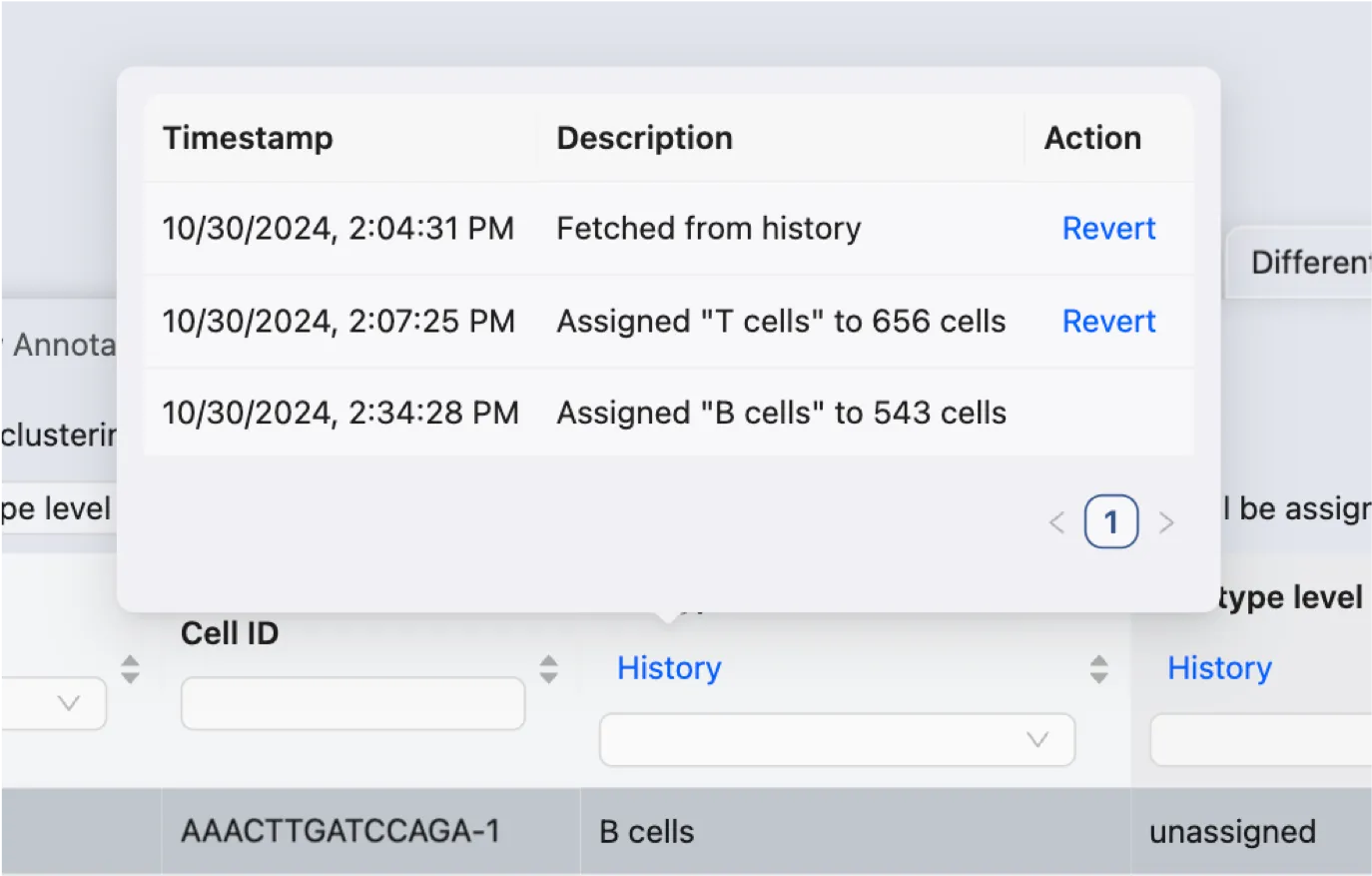
The history displays the following information:
Timestamp: The date and time when the annotation was created or last modified.
Description: The description of the change made to the annotation.
Action: Action to revert the annotation to a previous state.
Note: The history is only stored locally and will be lost if you refresh the page.